App guides / Spaceful
Free Android storage without losing files
Start with files you can identify, copy anything important to another device, and check that the copy opens before removing the original. In Spaceful, practice mode lets you explore without changing files. Moving files to its 7-day Undo area keeps them recoverable, but they still use phone storage until permanently deleted.
First, work out what is actually full
A phone can be short of storage even when its gallery looks tidy. Downloaded videos, old installers and media received through messaging apps can be larger than hundreds of ordinary photos. The useful question is “Which files are taking the space?” before “What can I delete?”
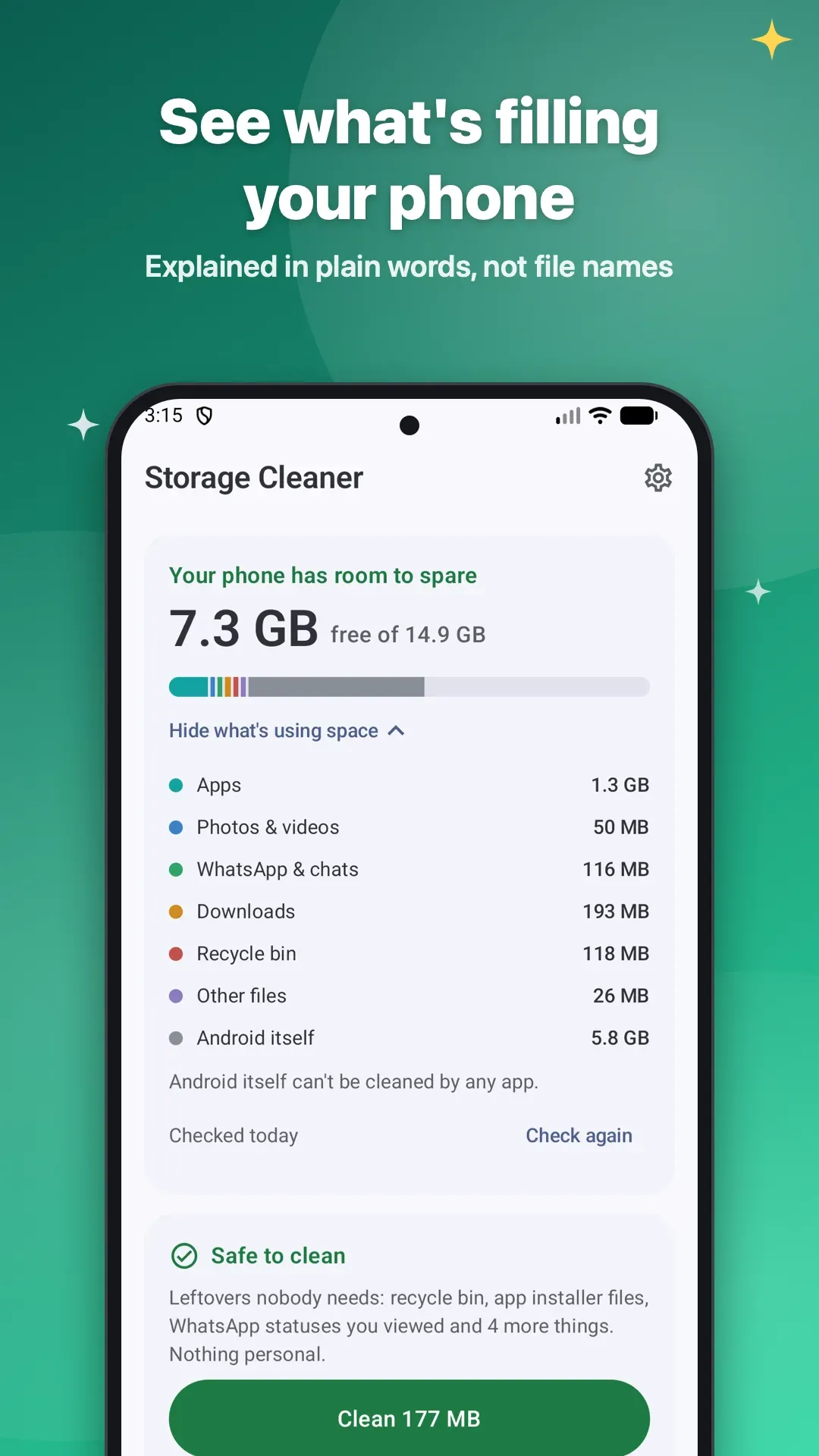
Open your phone’s storage settings and look at the broad categories. Android’s exact labels vary between manufacturers. Separate your own files from installed apps and the operating system. Spaceful is designed for Android 11 and later; its preview screens show file categories and app usage so you can investigate the part you control.
For options already built into your phone, Google’s Android storage guide covers removing downloads and backed-up media. The workflow below explains the additional review and Undo steps in Spaceful’s current design.
An app cannot safely promise to erase the space Android itself needs. Nor does freeing storage automatically make a phone faster or improve battery life. The goal here is narrower and measurable: recover space occupied by things you no longer need.
Start with one category and the biggest files
Choose a category where you understand the contents: downloaded videos, for example. Review files in order of size rather than trying to tidy every folder at once. Open an unfamiliar file before deciding what to do with it.
Spaceful’s design includes large videos, WhatsApp media, old downloads, duplicate files and similar photos. It also identifies folders that may belong to uninstalled apps. Those are suggestions to inspect, not proof that every item is disposable. A folder can contain something you deliberately kept after removing its original app.
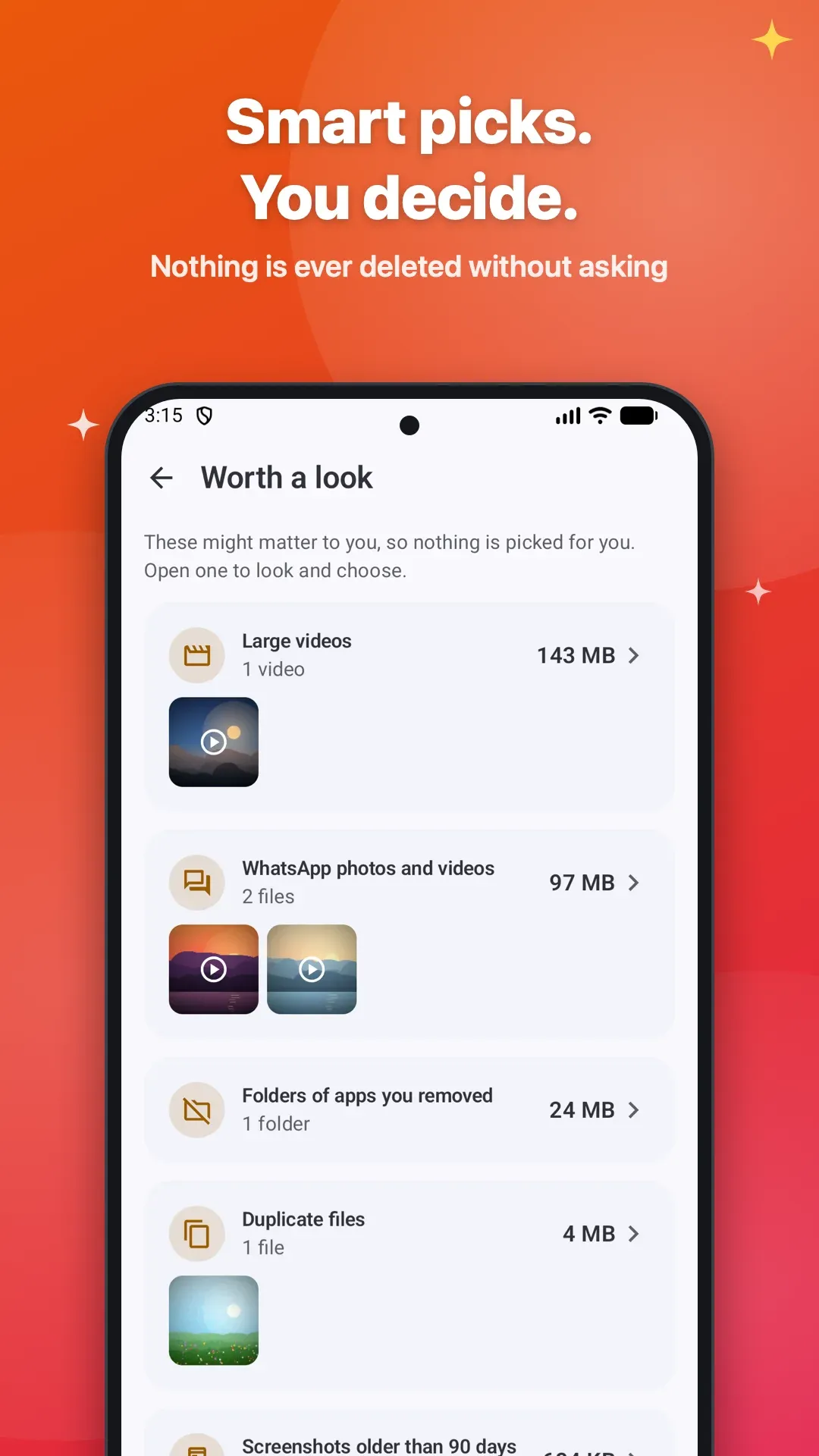
For photos, distinguish exact duplicates from near-identical images. Two pictures of the same moment may differ in focus, expression or framing. Keep the one you actually want, rather than assuming the larger or sharper file is always your favourite. Spaceful’s personal-file workflow leaves the decision with you; the one-tap clean does not select camera photos or documents.
Use practice mode to understand the action
Spaceful starts in practice mode. In this mode, you can explore the cleanup workflow and see what an action would remove without changing the files. It is useful when you are unsure what a button or category means.
Try a small, recognisable selection first. Read the confirmation, check the number of items and their size, and compare it with what you intended to select. Practice mode is a rehearsal: it does not create free space, because nothing has been removed.
Once you are comfortable, you can turn practice mode off in the app’s settings. Recheck your selection before confirming a real action. Do not use a whole category as a shortcut when you have only inspected a few items within it.
Copy important files and verify the copy
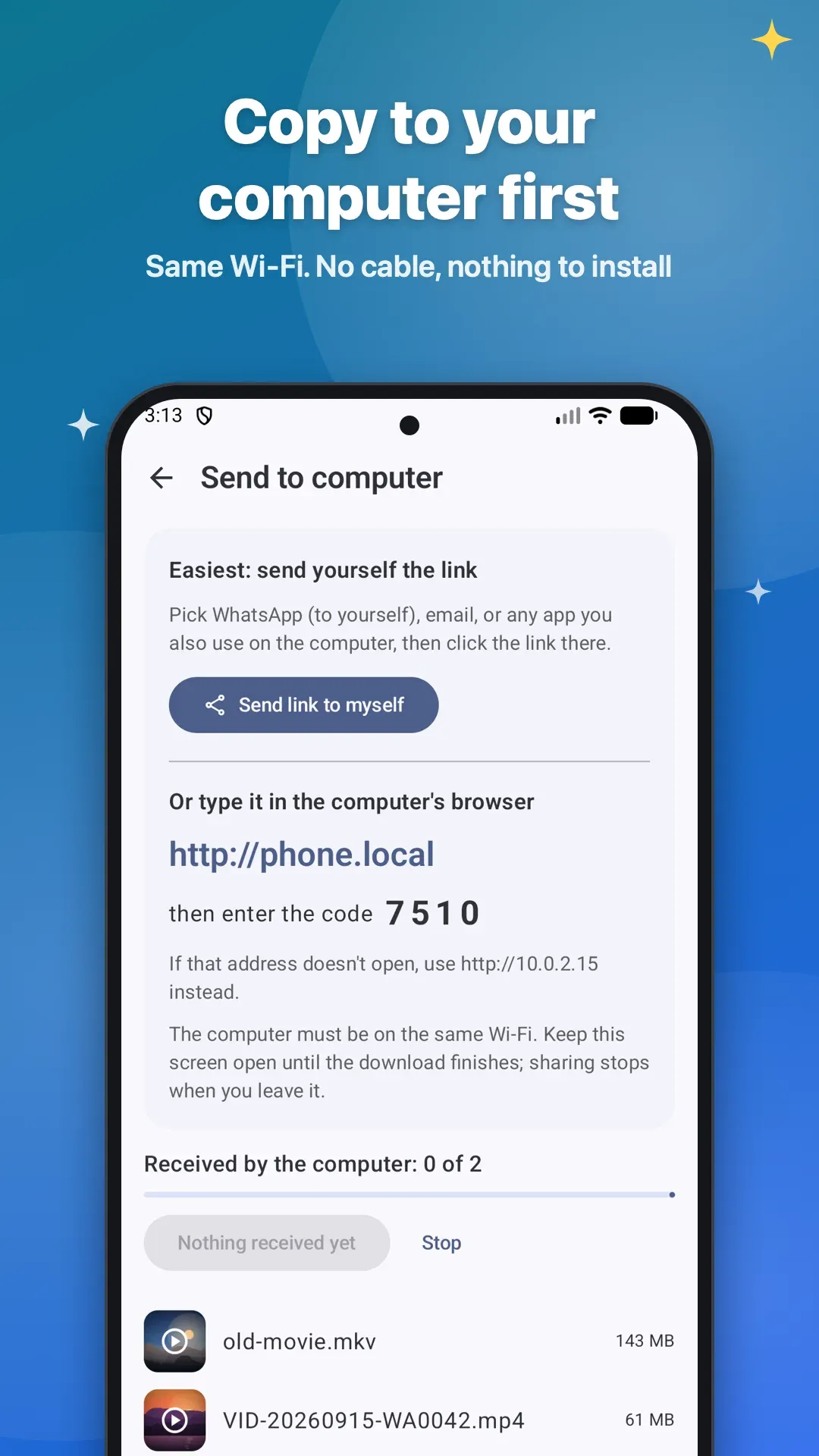
Moving a file into a temporary recovery area is different from making an independent copy. For something important, first copy it somewhere outside the phone. Spaceful offers a transfer to a computer on the same Wi-Fi and a handoff to Google Drive.
For a computer transfer, follow the connection instructions shown in the app. Keep both devices on the same Wi-Fi, then check the received files on the computer. Open a few photos at full size and play videos beyond their first frame. Check the number of received items as well as their names. A transfer screen saying “done” is helpful, but opening the copy is the practical check that you can use it.
If you choose a cloud service, let its upload finish and confirm that the copy is accessible before removing the original. The service’s account and storage rules apply. A copy on the same phone will not protect you if the phone itself is lost.
Understand why Undo does not free space immediately
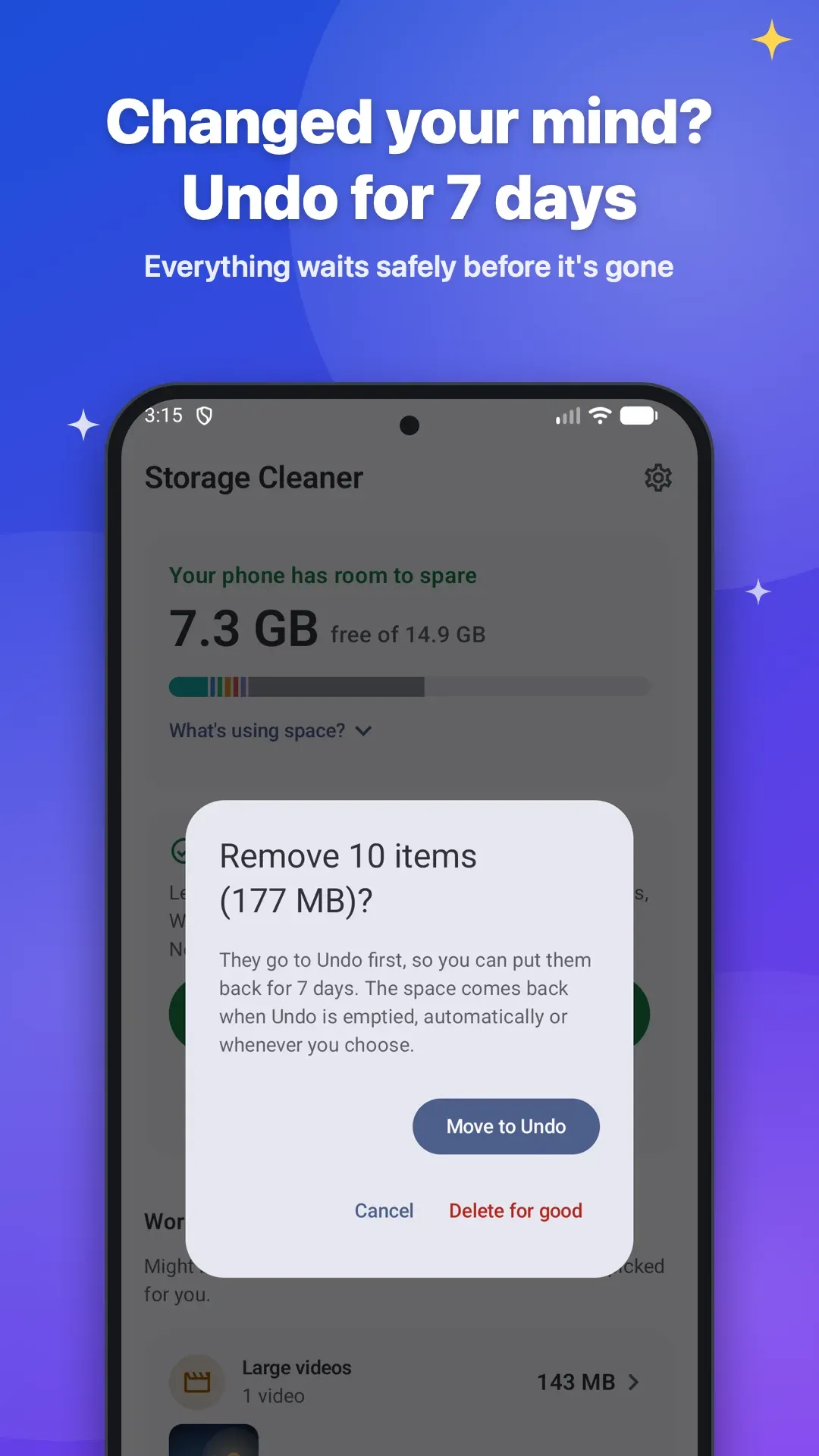
By default, Spaceful moves removed files into its Undo area for 7 days. This gives you time to change your mind. The files remain on the phone during that period, so moving 2 GB into Undo does not immediately add 2 GB to your free storage.
| Action | Can you recover it through Spaceful? | Does it free storage now? |
|---|---|---|
| Explore in practice mode | The original files are unchanged | No |
| Move files to Undo | Yes, during the recovery period | No; the files are still on the phone |
| Restore files from Undo | Files return to their previous location | No |
| Permanently delete from Undo | No | Yes, for the deleted file data |
The app’s Undo screen shows what is waiting and offers restoration or permanent deletion. Files are permanently removed when the retention period expires, or sooner if you explicitly choose that action. Treat permanent deletion as the final step, after checking any copies you need.
Uninstalling Spaceful does not remove the files waiting in its Spaceful Undo folder. If your intention is to reclaim their storage before uninstalling, review the Undo contents first. Keep anything you are uncertain about.
A worked example: a large video collection
Suppose you find 3 GB of videos, including 1 GB you want to keep and 2 GB you no longer need. First copy the 1 GB you value to your computer and open the received files there. Decide whether you also want that 1 GB available on the phone.
Next, select only the unwanted 2 GB. Practice the action if needed, then move that selection to Undo when ready. You now have a recovery window, but the phone still holds those 2 GB. If you need storage immediately, review that batch and permanently delete it only after you are certain. Otherwise, leave the recovery period in place.
This example is arithmetic, not a claim about how much any particular phone can recover. Your available space depends on the actual files and Android’s storage accounting.
Questions before you clean
Can Spaceful clear Android’s system storage?
No. It can show that system storage exists, but it cannot remove the operating system’s protected files. Avoid judging a cleanup by whether that category disappears.
Why does Spaceful ask for All files access?
Its file-management workflow needs access to find files across storage and move selected items to Undo or restore them. The Spaceful privacy policy explains permissions and the optional computer transfer.
What should I do if I am unsure about a file?
Keep it until you can identify it or verify a usable independent copy. There is no benefit in reclaiming a small amount of storage at the cost of a file you need. For current availability and supported devices, see the Spaceful product page.